
How It Works
[vc_row css=”.vc_custom_1460122496361{margin-bottom: 30px !important;}”][vc_column width=”1/2″][vc_custom_heading text=”How It Works” use_theme_fonts=”yes” el_class=”title”][vc_empty_space height=”20px”][vc_column_text]Safety inspection and compliance is crucial for any business. Manual inspections can be difficult and time-consuming though.
To save time, minimize documentation errors and improve operational efficiencies, invest in Stay Inspected.
The Stay Inspected mobile app is designed to deliver a seamless experience to users. Easy to install and use, Stay Inspected standardizes all your inspection tasks.[/vc_column_text][/vc_column][vc_column width=”1/2″][vc_single_image image=”2257″ img_size=”full”][/vc_column][/vc_row][vc_row css=”.vc_custom_1460122436961{margin-bottom: 50px !important;}”][vc_column][vc_custom_heading text=”Installation Process” use_theme_fonts=”yes” el_class=”title”][vc_empty_space height=”20px”][vc_tta_accordion style=”outline” color=”green” c_icon=”chevron” active_section=”1″ collapsible_all=”true”][vc_tta_section title=”Step 1″ tab_id=”1527674581429-d0fcb491-88e3″][vc_column_text]Sign Up on our user-friendly website. You will be assigned a company number. Thereafter, enter the units that need to be inspected. Please assign a number to each unit. The numbers are used to log in to the app.
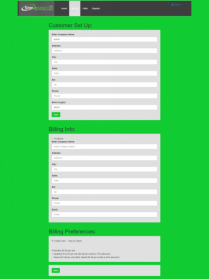 [/vc_column_text][/vc_tta_section][vc_tta_section title=”Step 2″ tab_id=”1527674581449-666ad50f-af44″][vc_column_text]Download the Stay Inspected app on your smart phone via iTunes Store or Google Play Store. Both Apple and Android versions are available.
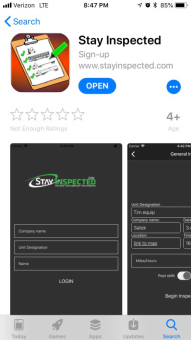 [/vc_column_text][/vc_tta_section][vc_tta_section title=”Step 3″ tab_id=”1527674646174-2f7c49d3-2196″][vc_column_text]Login to the Stay Inspected app. Enter your specific company number, unit number and the inspector’s name. Click ‘log in’. Company and unit numbers are assigned during Sign Up.
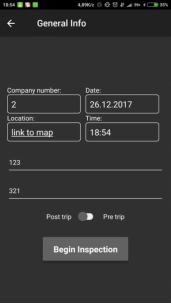
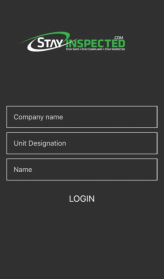 [/vc_column_text][/vc_tta_section][vc_tta_section title=”Step 4″ tab_id=”1527674718780-9bf03c97-ff8d”][vc_column_text]Time, date and location fields will automatically populate. The inspector only needs to fill in their name and toggle between Pre-Trip or Post-Trip. Click ‘Begin inspection’.
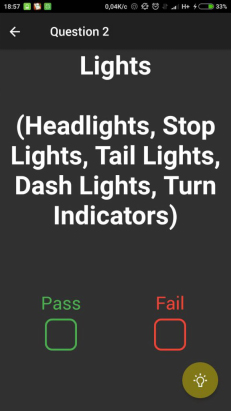
 [/vc_column_text][/vc_tta_section][vc_tta_section title=”Step 5″ tab_id=”1527674745050-b0d78b68-fade”][vc_column_text]Answer ‘pass’ or ‘fail’ for each inspection item. Click the “light bulb” icon to activate the light on your phone.
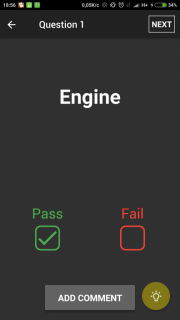
 [/vc_column_text][/vc_tta_section][vc_tta_section title=”Step 6″ tab_id=”1527674861381-3b26f965-5c6b”][vc_column_text]If the item being inspected passes then the inspector will click next and move on to the next item. Comments can be added at any time.
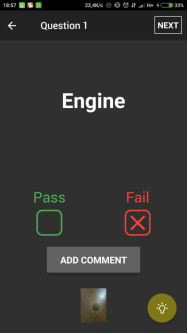
 [/vc_column_text][/vc_tta_section][vc_tta_section title=”Step 7″ tab_id=”1527674916928-eda212ea-7984″][vc_column_text]If the item being inspected fails, the camera on your phone will be activated and the inspector will be prompted to take a photo of the failure. Once a good photo is accepted by the inspector, click next to proceed further. A small picture will appear at the bottom of the screen, assuring the inspector that it was attached.
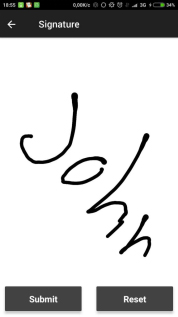
 [/vc_column_text][/vc_tta_section][vc_tta_section title=”Step 8″ tab_id=”1527674991620-0c1bb30a-c6ca”][vc_column_text]Once all items have been inspected, the inspector will be prompted to sign their name using their finger or stylus. This certifies that they completed the inspection.
Once done, they will click submit a detailed report, including photos. This will be automatically sent to the email recipients that were designated during the Sign Up process.
 [/vc_column_text][/vc_tta_section][/vc_tta_accordion][/vc_column][/vc_row]